Monthly Archives: December 2010

How Do I Backup My Media Files

This question is the natural extension to my earlier blog post about storage devices. And for good reason. If there is one aspect of our digital lives where we should be diligent it is with safeguarding those files. I promise you, most people do not do a good job of backing up their files, only to be disappointed when they find out their hard drive is damaged and their files irretrievable.
When I think about a backup strategy, I try to consider all failure points, mechanical, software and human error. Listed below are the strategies I employ for my office system (desktop). I am going to start with the desktop as I travel with little to know important data. What I travel with is usually replicated and temporary data. The post would be too long for both travel and office and since office (home) applies to more people, I will start there and talk about mobile at some other time or the post would be too long……and boring!

Desktop Backup
As I described earlier this week, I have 4 internal drives in my MacPro Tower.
Drive 1) System/Applications
Drive 2) Media Files (Master)
Drive 3) Media Files (Copy)
Drive 4) Live Work (What I am working on currently and any media file that has been “processed”) I do not have processed images on either drive 2 or 3.
I use 3 backup programs.
1) SuperDuper
2) Chronosync
3) Apple’s Time Machine
As you would imagine, I use each of these for different reasons. SuperDuper and Chronosync are similar programs but I use both to ensure some programing bug in one of their releases doesn’t take my data down. I then use Time Machine as a way to save my work and in essence archive changes on drives 1,2 and 4 in case a mistake is made but not detected for several days/weeks.

Here is how I do it.
1) Everyday at 10:00 PM, after all the days work/editing is done, Chronosync runs a job that mirrors drive 2 to an external Drobo unit.
2) Everyday at 7:00AM, SuperDuper clones drive 2 to drive 3.
3) Everyday at 8:00 AM, SuperDuper creates a bootable clone of my system disk (drive 1) to an external G-Tech mini
4) Apple’s Time Machine runs 24/7 in the background on the other Drobo external drive

Thats it. Basically what this system gets me is piece of mind and redundancy without a lot of technological demands. Oh Yeah, every week, the drives are moved offsite and new ones start the process over. This way I have copies of everything out of the office in case something happens such as a leak, fire etc.

Whatever system you use, it is important that you start doing regular backups right away! Don’t wait till tomorrow, do them now!

Note: One of the reasons I use Chronosync is that it allows for verifications of copies. This is important. You don’t want to “drag and drop” as a strategy for backups. That does not ensure your files are actually copied. This is a big mistake many people make. And the larger the amount of “stuff” you drag and drop, the better the chance that something is not retrievable when you really need it. Please don’t drag and drop as a backup practice!

If all of this seems a little confusing to you, you are not alone. If you need help, send me a note and I will be happy to try and help you with your process. I thought about doing a video on this topic but Chase Jarvis did a great job of explaining this in a diagram and video form on his blog. Why recreate the wheel!
Here is the link: Chase Jarvis Backup
What Storage Devices Do I Use?

I am receiving a lot of questions about how I store my images and what “backup” procedure(s) I employ. I suspect this is because of the holiday season. Folks are looking for great gift ideas for family and friends and what better gift than something that protects their loved ones valuable electronic data. I will attempt to give you a layman’s view of storage and leave all the technical specs to others. The web is filled with that stuff so if that floats your boat, have fun! So lets start by talking about Storage.

Storage can mean a lot of things. It definitely means different things in the context of how one uses storage devices. I will list here what I use for my portable digital darkroom and my office digital darkroom. I have an all Apple system. However, the procedures and precautions I employ work for Windows as well as Apple systems.

So lets get one point out in the open first. I am anal and paranoid when it comes to storage and backup. This will be confirmed over the next few blog posts! If my methods seem like overkill to you, sorry. But this works for me.

PORTABLE STORAGE
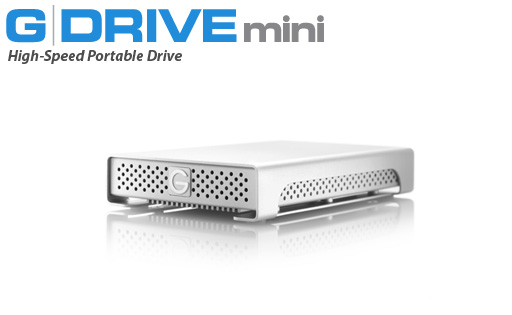
When I’m on the road I need 2 things when I ingest my days images, 1) Speed and 2) Redundancy. Currently I am using G-Technology G-Drive Mini 500 GB drives to to this. They are small, bus powered and reliable.

G-Tech G-Drive mini

I have 3 of these drives. 2 are daisey chained during the actual ingest process. 1 is the master and the other just holds a backup copy of the ingested files. I also keep my gallery images on both of these drives for showing my portfolio if the occasion arises. For safety, 1 drive goes in my briefcase and the other goes in my camera bag which never leaves my side. The third drive is a bootable clone of my laptop hard drive. This way if the laptop drive fails, I can still work off the clone. That also stays in my briefcase. It is important to note that my laptop hard drive does not hold any media files! The only thing on the internal drive is the operating system and applications. I find that the internal drives and the system in general work better this way. I follow the same procedure for my office workstation.

Above is what I use for the laptop while on the road. When my laptop is home, I add one more step. I use a G-Tech G-Drive 2 TB for backup of the overall system using Apple’s Time Machine.

G-Tech G-Drive

Desktop Storage
So if you thought the above process was overkill, wait till you get a load of this. My MacPro tower has 4 drives inside, arranged as follows:
1) System/Applications
2) Media Files (negatives)
3) Media Files copy
4) Live Work (I take a copy of the negative I want to process and move it here, I also store it here)

Then I have 2 Drobo’s (sorry, i couldn’t find any images of the Drobo to show you but their Website can be found here Drobo) attached to my tower that operate as Raid drives with 4 1TB drives each. Basically these units work in a way that allows for 1 of the 4 drives to fail and the data is still in tact. 1st Drobo is partitioned to backup my Media Files and Live Work. The 2nd Drobo runs Apple’s Time Machine which backs up internal drives 1, 2 and 4. If this were not enough, I have a G-Tech G-Drive mini that I use as a bootable clone of this system disk. I know, you are thinking I am crazy but this “system” lets me sleep at night and I have never lost an image. It also protects me from mistakes being made (accidents) via the Time Machine portion of the backup.

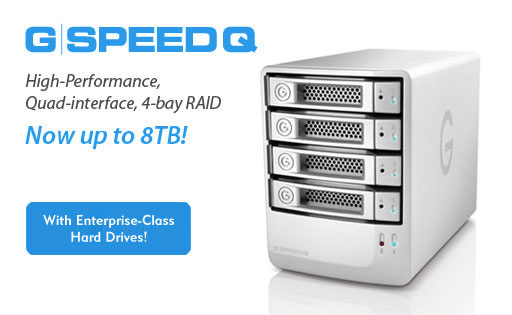
I have to admit however that I am impressed enough with the G-Tech units that I am considering switching my Drobo’s for the following G-Tech units:

G-Tech G-Speed

Why you might ask? The reasons are simple. While the Drobo drives are easy to setup, probably the easiest Raid Array to configure I have seen, their software is proprietary, which means that in order for the drives to operate if the box that holds the drives should fail, you need to find a Drobo unit to put them in. If you put them in a non-Drobo box, the drives, and your data are useless. I am having a hard time feeling comfortable with this setup even though I knew this going into the original purchase. Lastly, my Drobo drives are becoming noisy as they get older and this is making me a little nervous as well. The positive side to the Drobo’s is that they can handle most types and sizes of hard disks which helps to keep the costs associated with massive storage needs to a minimum. The G-Tech units need to use their drives (G-Tech is owned by Hitachi which is a first class drive manufacturer). These drives are more expensive as you would imagine.

I hope this helps in your quest for storage solutions. I might take a shot at creating a workflow diagram over the next few days. If you would be interested in this or think it would be worth a blog post, please drop me a line.

On Friday I will tackle the actual backup process I employ and talk about how I use the above storage solutions in that process.

Disclaimer: I do not receive free items from any of the manufacturers listed nor am I a tester for their gear (at least not as of yet 🙂 ). What is listed here are the items that work for me. There are numerous options and combinations of gear one can employ. This is what works for me. Use my suggestions if and only if you think it would benefit your workflow.
G-Tech images courtesy of the G-Technology Website